




Data Source Editing
The Running Reality desktop app can make direct edits to a range of data source file types.
Overview
Running Reality can act as a simple editor to make direct edits to a range of data source file types, reducing the need to transfer files back and forth between multiple desktop applications.
Download AppImages
You can use an image as a data source. The most common use of image data sources is for entering data from historical maps.
| Historical Map | Historical Photo |
|---|---|
| Use historical maps from map collections or other reference works, with proper citation. | IN WORK We are prototyping using generative AI to create 3D versions of people and buildings from historical photos. |
Historical maps in a PNG or JPEG format are usually just raw scans of the original paper map and do not have any embedded georectification metadata embedded in the file. Maps in the GeoTIFF format often do have georectification metadata. Georectification is the process of marking how the pixels of an image align to latitude and longitude on the surface of the Earth. For modern maps, this can be a fairly straightforward process, but for historical maps there may need to be some more complex warping of the map to align features to modern standards of accuracy. Maps maps are now available as a web service, already aligned, such as OpenStreetMap.
Coarse alignment of historical maps places them at a specific location in the map. Georectification metadata is stored separately by Running Reality and does not affect the source image, which allows you to georectify an image identified by a URL from a web site. For data sources that are part of a Running Reality project, the georectification data is synchronized to the server so it can be shared with all members of the project.

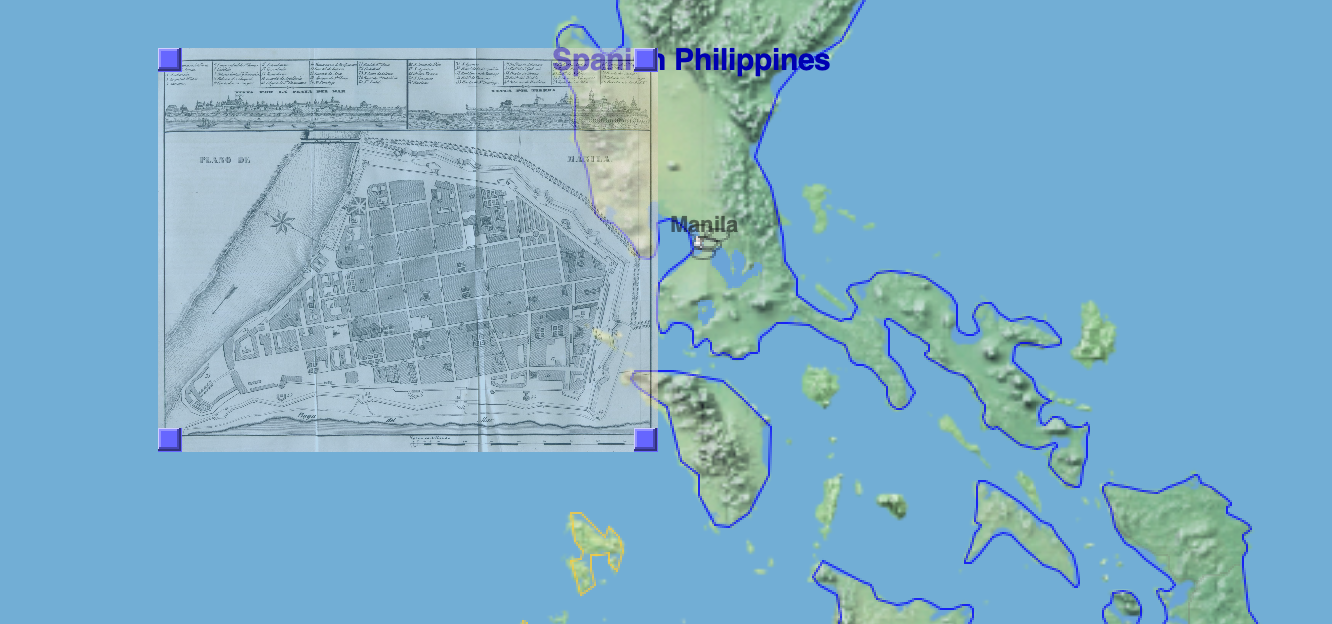
Then, specific features within a map can be more precisely aligned using Geographic Control Points (GCPs) to "warp" older maps to better align known locations. Running Reality uses a thin-plate spline warping algorithm.
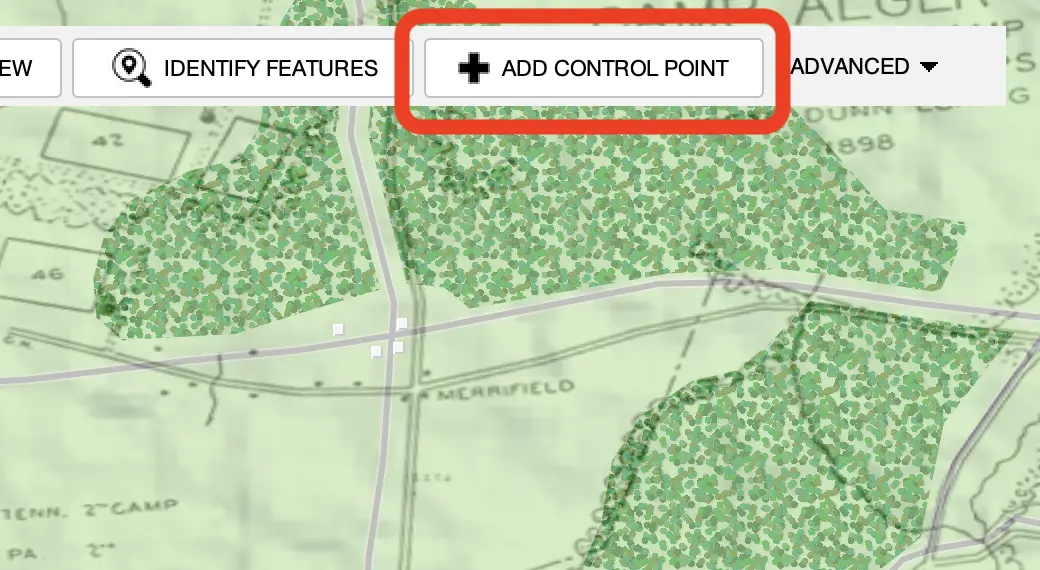
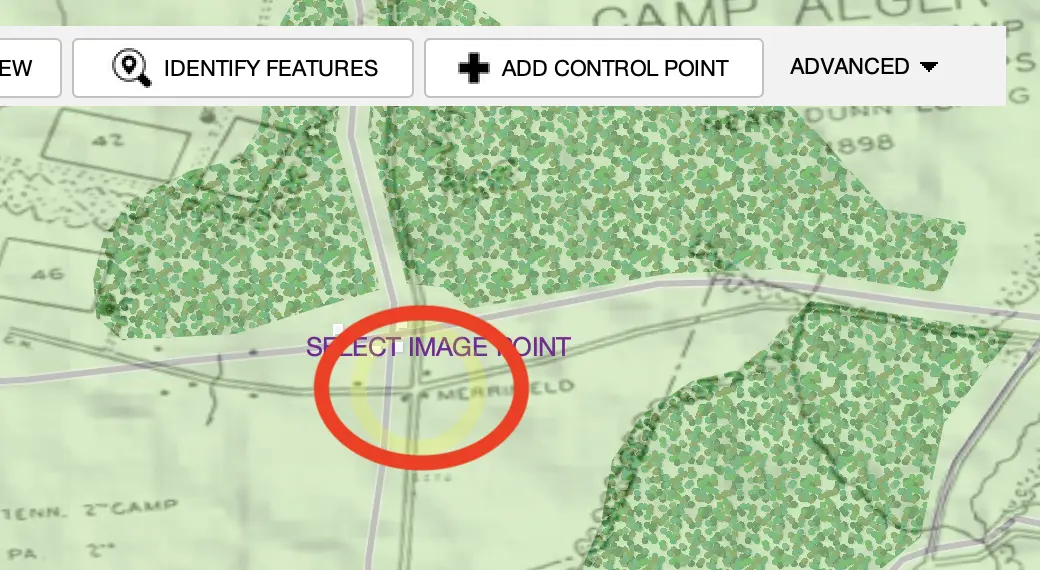
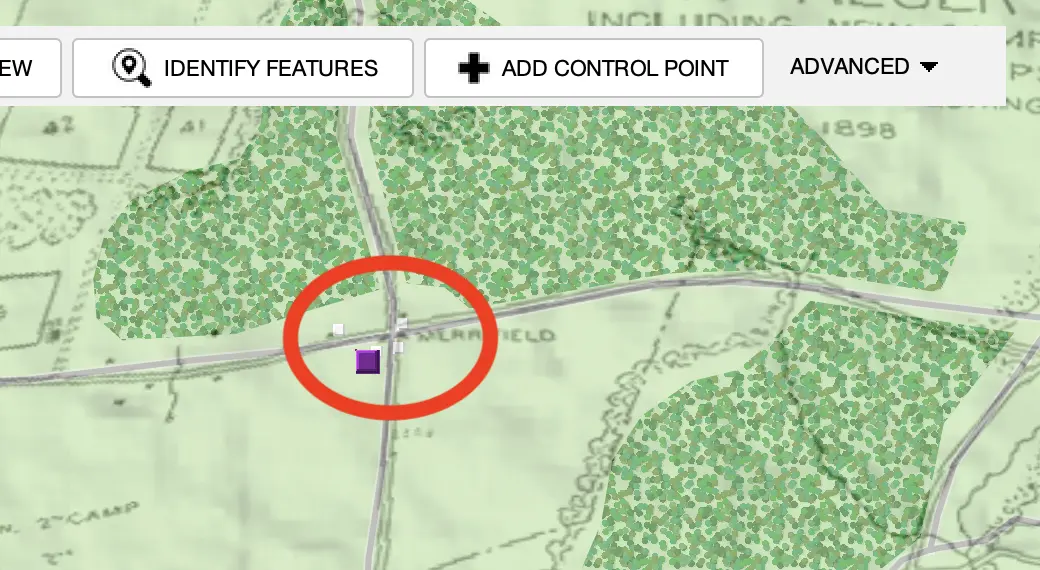
Features in maps that are clear and distinct polygons can be identified and imported using an AI machine learning algorithm. Use the "Identify Features" tool to attempt to pick out a polygon from the map.
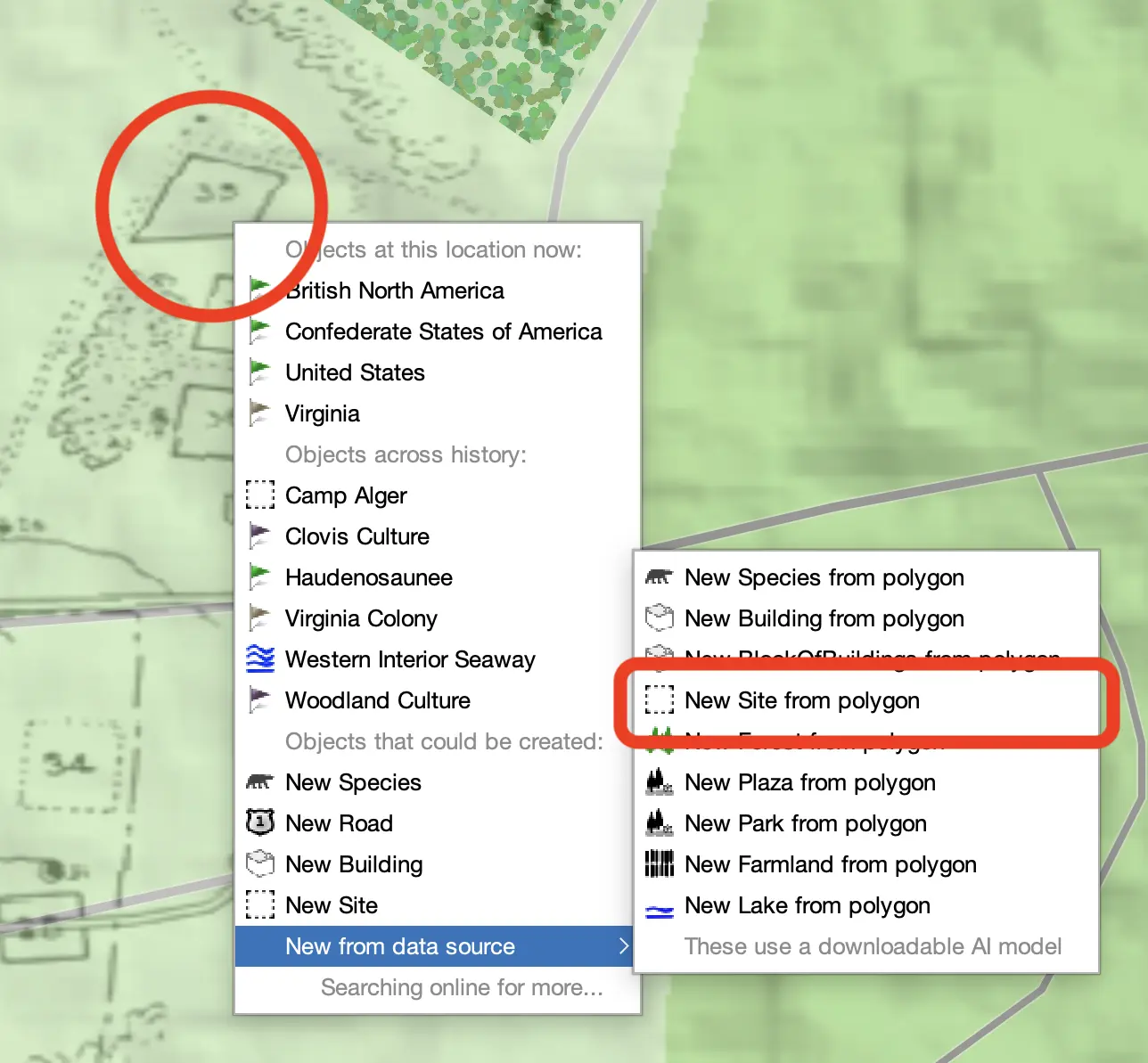
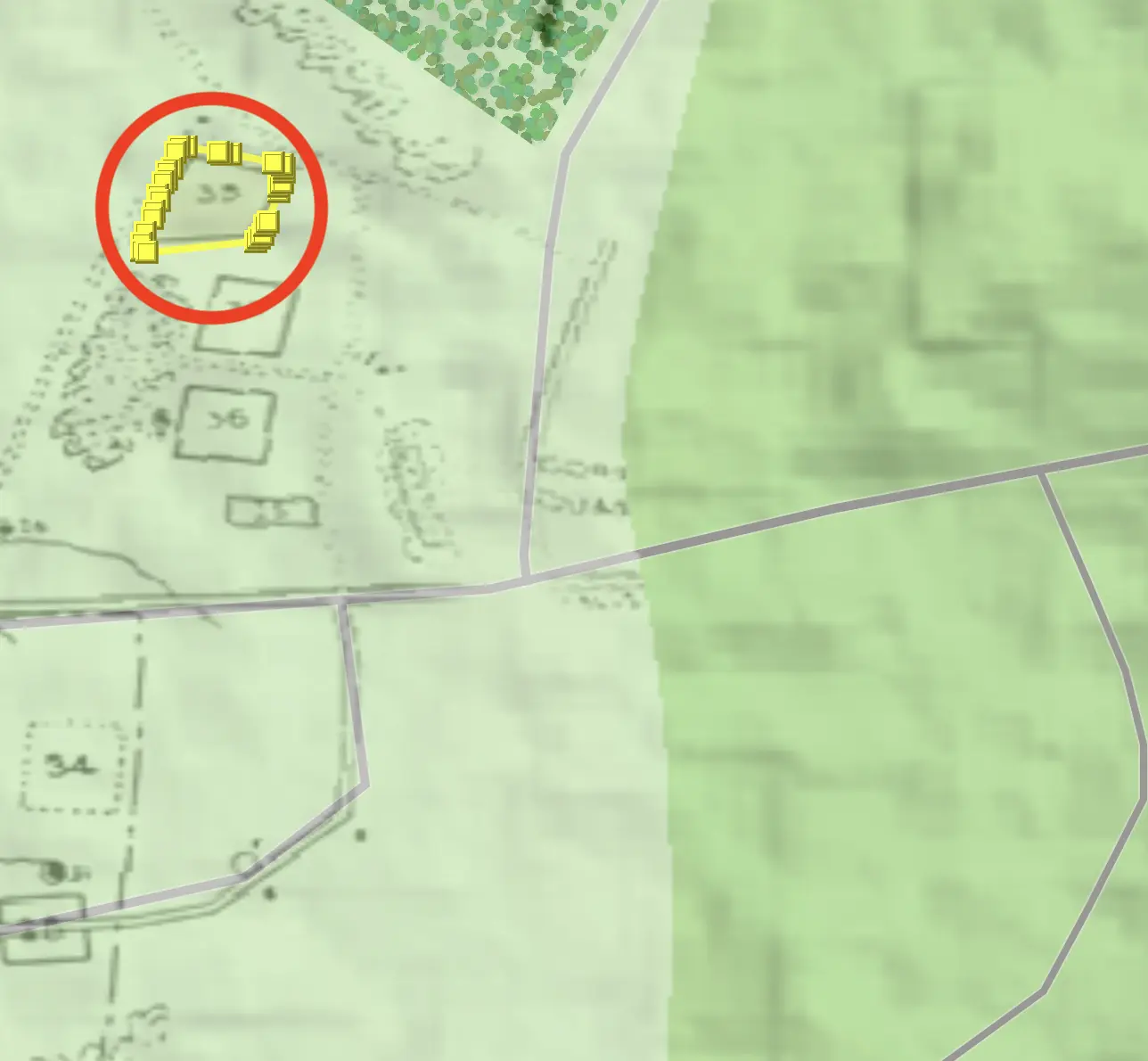
This uses "semantic segmentation," which combines traditional image processing with machine learning models to identify patterns with new models that also understand the context and meaning of the patterns they are assessing to better group pixels into semantically-coherent shapes. This has proven to be more effective with historical maps.
Here are some other tips for using images of historical maps as data sources:
- Combine data sources to get a better georectification result. Try adding OpenStreetMap as a data source under your historical map and then find features surviving into the modern era that correspond, such as city walls, cathedrals, rivers, and some roads.
- Images from PDF data sources can be pulled out as their own data sources to georectify. This works well with maps in research papers, especially papers with a DOI citation that can then be used for all data identified on that map.
- Setting the date for a map data source can make working with multiple images much easier. I.e. for multi-day battles you can have images for each day's troop positions then click the image's date to jump the main map to the right date.
IMPORTANT Historical facts can not be copyrighted, but maps can be. Running Reality does not incorporate historical maps into its data set directly, but historical maps contain data about historical facts that can be used. The existence of a building, it's location, and its footprint in a given year are historical facts. That a street existed in a given year and that it ran from one location to another are historical facts, no different than if they were written in words. The image of the map can not be directly used, but it can be a guide to locate historical objects using Running Reality factoids, with proper citation of the historical map image.
Tabular Data
Editing a table is as simple as clicking in a data cell and making the text edit. Running Reality is a simple editor and does not support Microsoft Excel formulas.
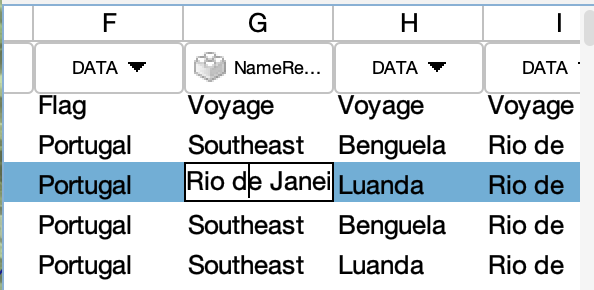
For XLS files and SQL databases that have multiple tables, there is a tab/table selector at the bottom of the viewer. Use this to switch tabs/tables to view and edit other data.

RDF Data
An RDF file is a Resource Description Framework (RDF) file. The file consists of statements in "tuples", where a tuple is a subject → predicate → object. These tuples may also be saved in alternative but functionally identical file formats such as N-Triples (.nt), Turtle (.ttl), JSON-LD (.json) or RDF/XML (.rdf). This is the most common interchange format for Linked Open Data (LOD) in historical disciplines or other disciplines. Running Reality provides a simple tuple editor so that you can make edits to an RDF file within a Running Reality workflow.
A Running Reality factoid is similar to an RDF tuple, but contains five elements. A tuple contains a subject → predicate → object. A factoid contains the subject, relationship (i.e. predicate), object, date, and fidelity (i.e. citation).
The basic viewer shows each tuple organized as a tree under the subject. Note: the tuples may not
be organized in this way in the file itself. Each predicate is a branch under the subject, then
each object is a single leaf under each predicate. In the example below, the predicate is
temporal and the object is start=-270;end=-230
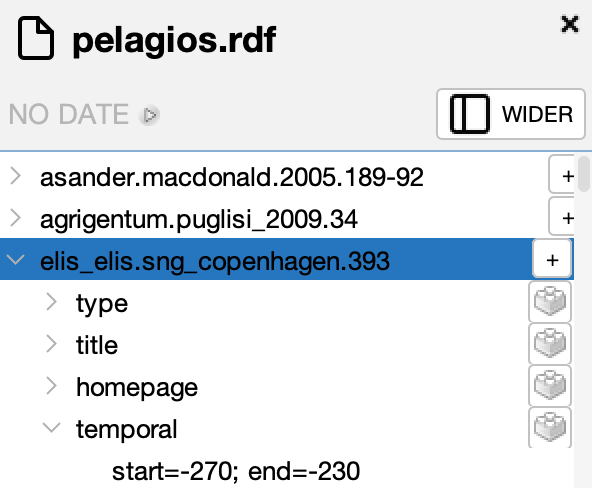
You can add a new statement representing a new tuple by clicking the "add statement" button in the toolbar when you have a subject selected. The tuple editor opens for the selected subject and you can then select a new predicate and new object. The predicate has a drop down menu to show the predicates available from the ontologies already defined in the RDF file.
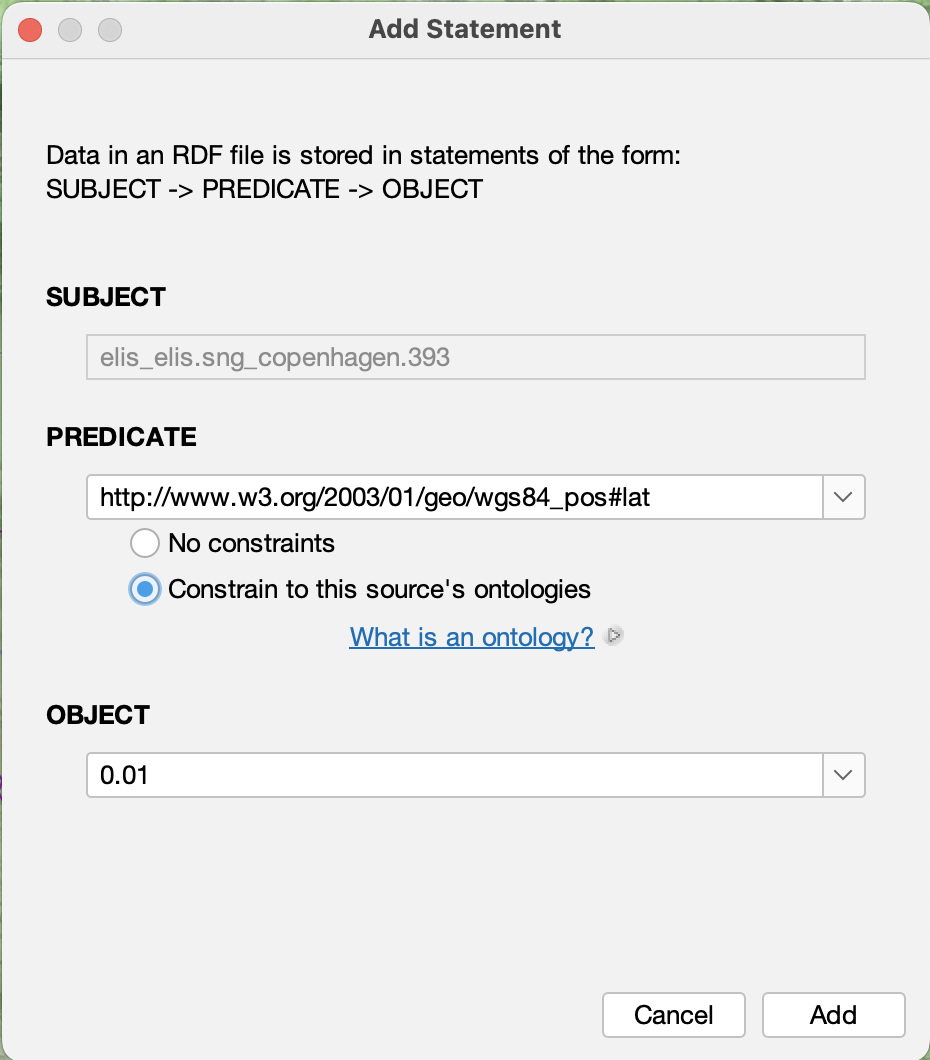
To add new tuples from a transformation of another non-RDF data source, such as a spreadsheet or narrative text, use the transformer.
To view the ontologies that are currently defined, you can select the "show ontologies" button in the toolbar. A subject may have to be selected first in the sidebar.
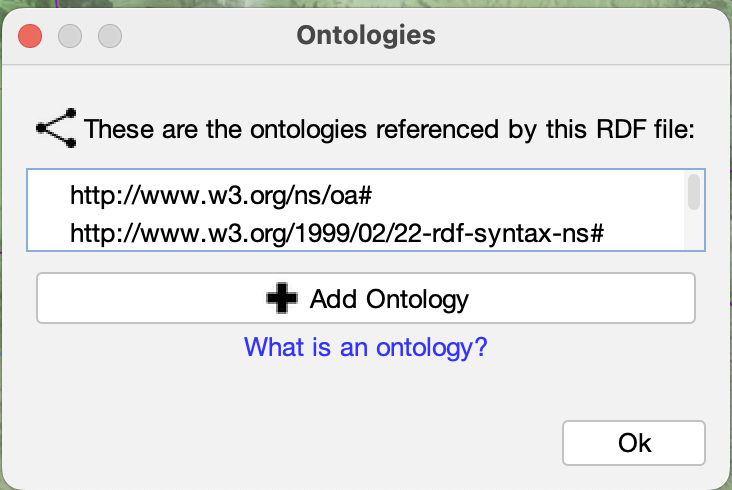
This is a simple RDF editor with basic features. Note that it auto-saves your changes and does not have an undo function. Your computer operating system may have version control to retain each saved version. Additional editing features will be added over time.
GeoJSON
A GeoJSON file is a JavaScript Object Notation (JSON) file that has a specific structure to represent "features," a standard definition of a geographical object. Each feature has a geometry that can be a point, line, or polygon. Each feature may also have a series of properties. There is no standard for properties, but there are conventions that a property with the key "name" is used as the feature's name. Style information can also be set as properties, though only some GIS applications and web viewers follow this convention. Running Reality also uses the GeoJSON-T extension that adds a "when" to each feature to represent when the feature exists in time.
GIS For users familiar with GIS systems, items in the map are usually click-able. In Running Reality, a data source must be switched to "edit" mode to be able to click to select features. This is because Running Reality is primarily a history editor, and much of the time you are editing the history data underneath the GeoJSON features. So, we require you to explicitly say when you want to edit the GeoJSON data.
To add a simple empty feature, click the "add" button. To add a feature based on a Running
Reality object, click "add from selection" to select a Running Reality object. This is the primary
way to export selected Running Reality data to GeoJSON.

To add a new polygon representing the geotemporal extent of a new border, such as a nation border, click "add." This creates a new polygon you can edit using Running Reality's advanced polygon tools.
To add a new polygon representing the geotemporal extent of other data, click "add from extent." This analysis creates a new polygon around raw data points.
To add new features from a transformation of another non-geographic data source, such as a spreadsheet or narrative text, use the transformer.
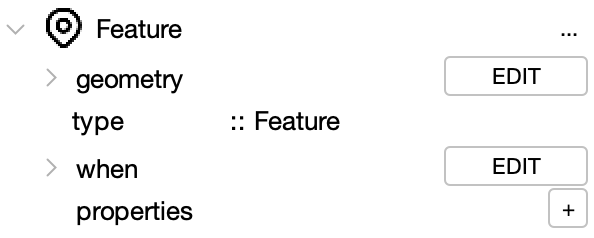
When in editing mode, this is the view of a single editable GeoJSON feature. To edit the geometry, click the "edit" button next to the geometry.
The geometry editor lets you edit the point coordinate, or switch it. There is also an in-map editor to edit the vertices of the point, line, or polygon.
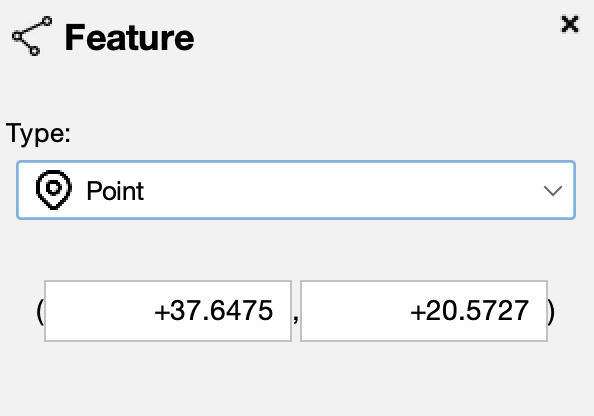
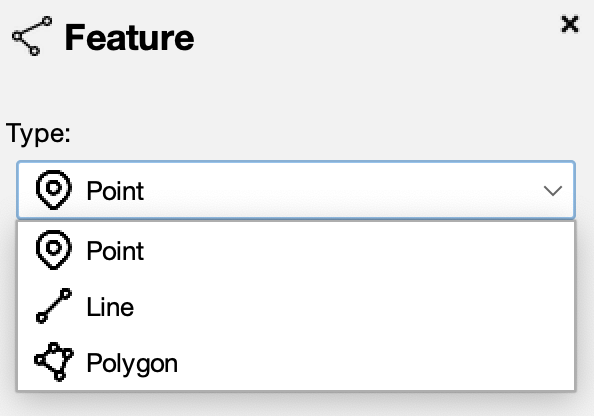
The drop-down menu lets you switch the geometry type between point, line, and polygon.
The property editor has a "+" button to add new properties to the feature. You need to enter a key and value for each property. The GeoJSON standard does not specify particular keys to have specific meaning.
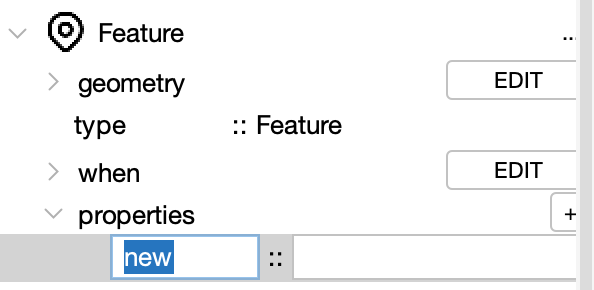
Basic properties that Running Reality recognizes:
- name
- color
To switch the style for this GeoJSON, use the style drop down menu from the toolbar. More advanced styles provide better contrast between data from different sources or to color individual feature points, lines, and polygons based on color data in each feature's properties.
Note that style information is not standardized across GIS apps because there are only conventions for styling GeoJSON, not standards. Running Reality recognizes one of the most common style conventions, the Mapbox "SimpleStyle." Using these properties, the GeoJSON file is now able to be used in other "SimpleStyle" compatible GIS apps or uploaded to a website that visualizes GeoJSON layers, such as one using OpenLayers or LeafletJS.
Mapbox "SimpleStyle" properties that Running Reality recognizes:
- title
- description
- stroke
- stroke-width
- fill
- fill-opacity