




 TALK)
 SYNC)
 GUIDE)
 WALK
Walking Through History
Premium access: INDIVIDUAL SITES TEACHERS
Step down from an aerial overview and experience history at ground level. WALK lets you explore historical streets, find people to talk to, and investigate what happened around you. Visit a real site in augmented reality, or travel to a historical place from anywhere in virtual reality.
Two Ways to WALK
AR and VR are two ways to explore the same historical world. Choose based on whether you are standing at the site or visiting it remotely.
AR: See what can no longer be seen
At a historic site, walk around and point your phone or tablet. Historical people and reconstructed features appear in the camera view of the place where they belong, connecting today's landscape to its past.
VR: Step into history from anywhere
Drop down into a historical city or event and explore at ground level. Use familiar video game controls to walk through the scene on your screen, whether you are in a classroom or on the other side of the world.
Getting Started
- Choose a place and time. Open Running Reality and find the historical setting you want to explore. For an on-site visit, start at your current location and select the historical date.
- Get close, then select WALK. Zoom in on the place you want to enter. If the WALK button is disabled, zoom in further.
- Choose the view. Use the VR switch in the WALK controls: on for a fully virtual scene, off for AR over the live camera view. For AR, allow camera, location, and motion access when your device asks.
- Look around and investigate. Walk through the scene, approach a person, and use TALK to learn about their experience and perspective.
Historical content and aerial exploration are free. WALK is a premium feature; access can come through a subscription or trial, a teacher's class link, or a participating site's visitor link.
AR: See the Past Where It Happened
Augmented reality connects historical content to the place you are standing. A vanished house, a former rail line, or the people who once occupied an empty landscape can help explain what you see today. Walk around the real site and point your device to look at the historical scene from different directions.
Your device's location places you in the scene, and its motion sensors and compass orient the view as you turn. Keep the device pointed up and around the site. The historical date determines which people and features are shown; the live camera continues to show your surroundings today.
SITES A participating site's visitor link can give visitors premium WALK access while they explore its history on location.
VR: A Time Machine From Anywhere
Virtual reality replaces the live camera view with a reconstructed historical setting. You can enter a city, walk its streets, and explore the setting of an event without traveling there. The aim is a time machine experience: history surrounds you at a human scale, with people to meet and places to investigate.
Use a normal computer, tablet, or phone screen; cardboard viewers are optional. Mouse, keyboard, and touch controls let you navigate the scene. Students familiar with video games can use the same pattern of moving, turning, and choosing what to investigate.
Navigation Controls
In AR, physically walk and point your device. For VR exploration, use the following controls. On a phone or tablet with motion controls active, turn the device to look around; otherwise, drag or swipe to turn.
| Input | How to navigate in VR |
|---|---|
| Keyboard | W / S: move forward / backward. The arrow keys also move forward, backward, and sideways. Controls do not move you while you are typing in a text field. |
| Mouse | Drag left or right to turn. Scroll up to move forward and down to move backward; keep the pointer near the center of the view for straight movement. You can also click open ground near the bottom of the view to move there. |
| Touch | Swipe left or right to turn when motion controls are not active. Tap open ground near the bottom of the view to move there. Tap a person or an available item to select it. |
Clicking or tapping the ground moves you during remote VR exploration. When the view is following your device's real location, your physical movement sets your position.
 Cardboard Viewers
A viewer is optional. WALK works on a normal screen. A compatible phone and a simple cardboard viewer offer another way to experience both AR and VR, with a separate view for each eye.
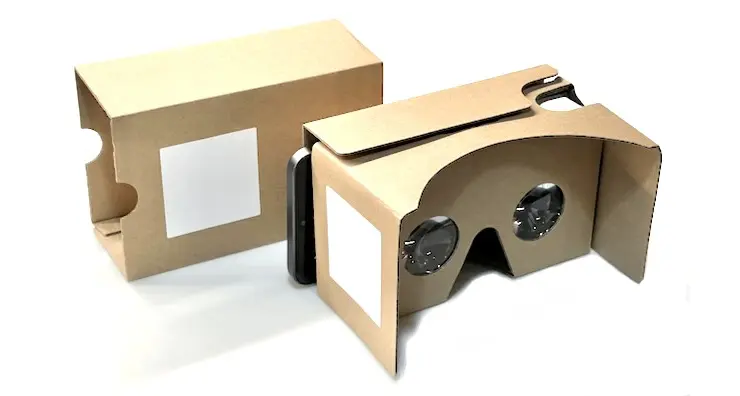
At a historic site, use AR to look at the real landscape with reconstructed historical features in place. A cardboard viewer makes this feel more immersive while shading the screen from sunlight. In VR, the same viewer lets you look into a fully reconstructed historical scene.
- Especially engaging for younger visitors. Looking into the scene can make a big difference to their interest and give them another reason to explore and ask questions.
- Very affordable. The viewer is literally cardboard and two lenses, making it an inexpensive option for individual visits or groups.
- Useful in bright sun. The enclosure shades the phone screen and helps reduce the reflections that can make outdoor AR difficult to see.
Switch to cardboard mode
- Open WALK on your phone. Choose AR for a visit on location, or VR for a fully virtual historical scene.
- Press the cardboard mode button
in the WALK controls. Your phone switches to a stereo view with two views side by
side, one for each eye.
- Turn your phone to landscape. If it stays in portrait, turn off orientation lock or enable auto-rotate.
- Put your phone into the cardboard viewer. Look through the lenses and turn the device to look around the historical scene.
For AR, use a viewer that leaves the phone's rear camera uncovered. The GPS and compass accuracy guidance still applies. To return to the normal screen, take your phone out and press Exit Cardboard view.
Find People, Artifacts, and Items
Both AR and VR let you explore the historical scene and choose what to investigate. What you find depends on the place, date, and content available there.
Meet people and ask questions
Use WALK to find people, then use TALK to investigate their perspectives. These interactive people are digital historical reenactors. Ask about their experiences and compare what different people tell you, using the cited sources to examine their accounts.
Discover historical artifacts COMING SOON
Artifact discovery is being developed so you can find historical objects while exploring a scene. It will add another way to investigate the people, places, and events around you.
Find teacher-placed items TEACHER ONLY
Teachers can place items for students to find during a class investigation. These items give students a reason to explore particular places and connect their discoveries to the teacher's question or activity. Placing instructional items is a teacher feature; students encounter them through the class experience.
WALK With Your Class
TEACHERS Start with an overview, then bring the class down to ground level at a shared stop. Give students time to find people, ask questions, and investigate the place before regrouping to compare evidence. Use SYNC to bring everyone to the next place or time.
Leading a Class (SYNC) explains how to present on one screen or coordinate student devices through a class key. WALK covers exploring the scene; TALK covers conversations and inquiry. The teacher field notebook, coming soon, is planned to bring together evidence collected during the investigation.
Practical Details
Do I need a headset?
No. WALK works on a regular screen. See cardboard viewers for an optional way to experience AR or VR and instructions for using one.
Why does the amount of historical detail vary?
Running Reality's historical content grows as contributors and partner sites add research and reconstructions. A place may have historical data without a detailed 3D reconstruction for every date. Preview the setting before a visit or class activity.
What if the camera or motion view does not start?
Check that the browser has the requested camera, location, and motion permissions for Running Reality. If a motion prompt appears, use its Continue or Restart Sensor button and point the device up and around. You can use VR for remote exploration without the live camera view.