




 WALK)
 TALK)
 SYNC)
 GUIDE)
Teacher handbook · Quick start
Your first inquiry lesson
Choose a moment. Share a link. Let your class investigate.
Start with one highlight and one question. Preview it on your own, then lead the class on a shared screen or bring student devices along with your teacher trial or subscription.
Choose a starting point
Choose your location and grade to see one example inquiry. Explore the full set of learning objectives and mapped content for more options.
A sample inquiry to try
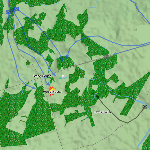
Civil War — First Battle of Bull Run, 1861
1861Explore the battle through military, medical, and civilian accounts. Use the setting and available documents to connect the fighting with its effects on nearby communities.
Explain how the American Civil War affected soldiers and civilians, including free and enslaved people.
A question to begin with
Whose perspectives differ here, and what evidence helps explain those differences?
Preview the highlight's steps and choose a stop with people to interview. Adapt the question to your class and the evidence available there.
Opens in a new tab, so you can keep this guide alongside your class.
Lead the inquiry in four steps
Give the class a question and a time to regroup. For student devices, use SYNC's LITE setting: everyone comes to your chosen stop, then has room to investigate.
-

Visit the moment
Open your highlight in teacher view. Use a few steps to introduce the setting, then pause at the place and time students will investigate. Students open your class link.
-
Question the people
Press WALK at your chosen stop to bring the class to ground level. Students explore to find people and use TALK to ask about their experiences. Compare different roles and perspectives.
-
Collect the evidence
Examine available documents and citations. Have students record claims, observations, and source details in their usual notebook or LMS. Ask who created each source and what it can tell them.
-
Build a conclusion
Regroup to compare accounts and evidence. Ask students to support an explanation, explain where their evidence came from, and identify what remains uncertain. Connect their findings to your learning objective.
Questions before class
What does the access key share?
It lets devices using your student link join your class and use the classroom features enabled by your teacher trial or subscription. It is separate from your account password. Only your signed-in teacher account can lead the class or change settings. Keep the key and student link within your classroom channels.
How do I bring everyone together, then let them explore?
Open teacher settings in your profile and use LITE for shared stops with independent exploration. Select a highlight step to bring the class to its place and time; press WALK when you want them to explore on the ground. Select another step to regroup. HARD restricts navigation to your selected step; NONE lets students explore independently. Read the SYNC options.
Can I put the student link in my LMS?
Yes. Paste it into an assignment, announcement, or class resource in Google Classroom, Blackboard, Schoology, Canvas, Moodle, or another platform that accepts web links. Keep using your LMS for submissions and grading. Running Reality does not import your class roster or synchronize grades. See LMS sharing instructions.
What do students need on their devices?
A web browser and an internet connection on a laptop, tablet, or phone. Students open your link without installing an app or creating accounts. WALK's on-screen controls work with a mouse, keyboard, or touch; preview the chosen stop on your classroom devices. See WALK controls.
Why can't I load my key, or why did an old link stop working?
Check that you are signed in to the account with an active teacher trial or subscription. Your profile shows your access and class settings. Replacing the key there invalidates earlier student links; return here to copy the new link. A teacher key follows one shared class at a time, so keep the teacher view open on the computer you are using to lead.
Where do students keep their evidence?
Use your usual notebooks, shared documents, or LMS for student notes and assessment. The Teacher Field Notebook is coming soon. Students join with the class key; there is no class roster to import before you begin.
How long do I have to try this with my class?
One-time 45-day free trial. Check the trial's end date in your profile. Use it to preview an inquiry, teach it with your class, and try another topic before choosing a subscription.
Need help with your first class? Email the Running Reality team.